How uploads work
This page explains how fishcut connects to YouTube and uploads videos, what data it stores, and how to revoke access. It is gathered on one page for Google reviewers and for users connecting for the first time.
1. Architecture
The fishcut editor is a local web app that runs on your computer. Your browser opens the editor at this computer's address (127.0.0.1), and the editor sends Google account connection and YouTube upload requests directly to Google. There is no NomaDamas server in between, so NomaDamas does not receive tokens, channel information, or videos.
2. From connecting to uploading
-
Add an OAuth client
OAuth client credentials cannot be included in an open source repository. In your own Google Cloud project, turn on YouTube Data API v3 and create an OAuth client for a desktop app, then add the downloaded JSON file by running
fishcut youtube import <file>. You can also leave this to your agent. -
Connect with Google
In channel management, press "Google로 연결" (Connect with Google), and the Google consent screen opens in your system's default browser. fishcut does not use a browser built into the app. When you check the app name and the two permissions on the consent screen and allow them, the editor receives the result at a temporary address on this computer (PKCE, state check).
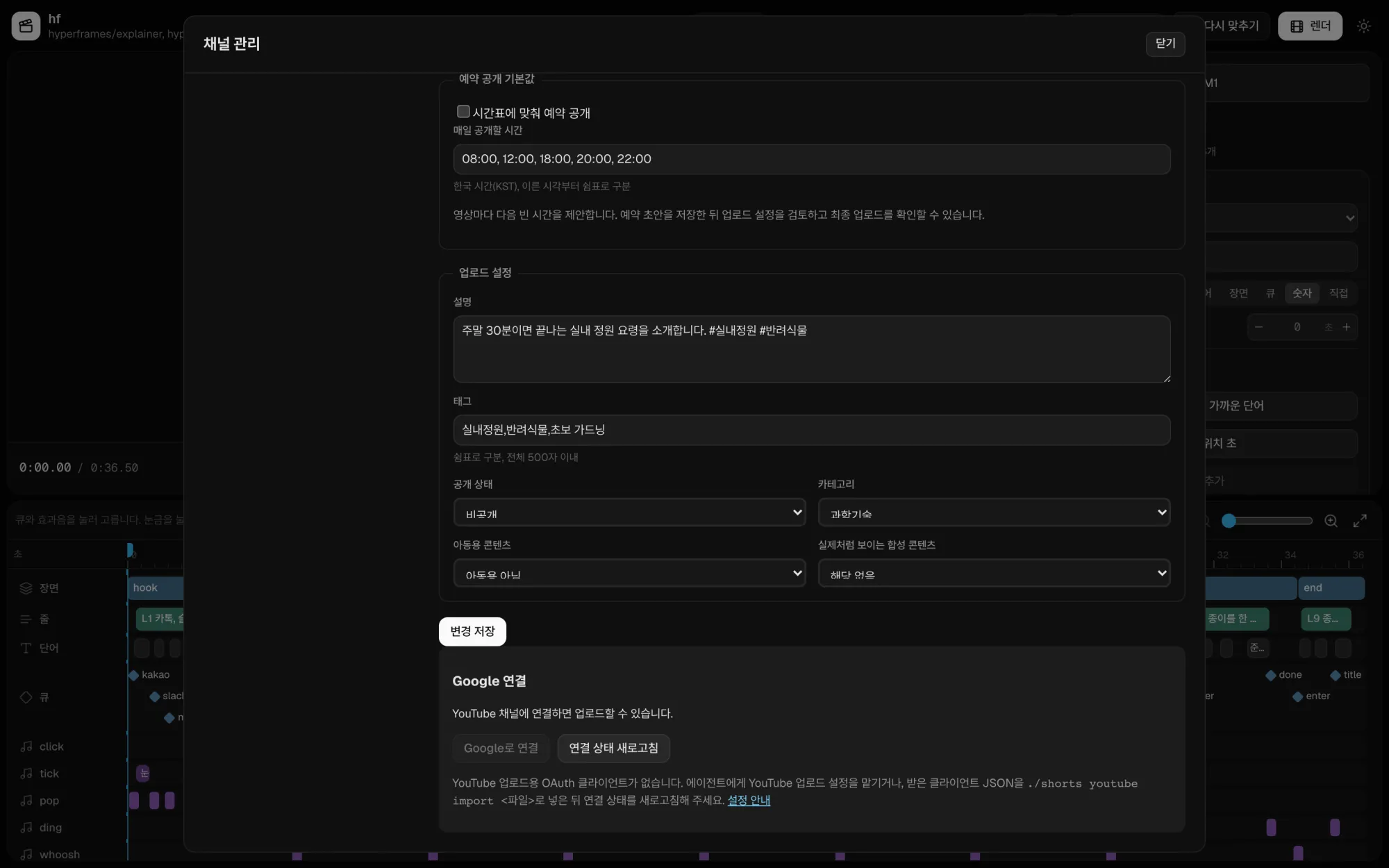
Google connection in channel management. Until you add an OAuth client, "Google로 연결" (Connect with Google) is turned off. -
Check the channel
Once you are connected, the editor uses
youtube.readonlyto read the name and ID of the connected channel and shows them. On this screen, check that it is the channel you want to upload to. -
Review the upload settings
Set the title, description, tags, visibility (public, unlisted, private), category, made for kids, realistic synthetic content, and scheduled time. Your channel defaults are filled in first, but you can change them for each video, and the editor does not add any other text after what you enter.
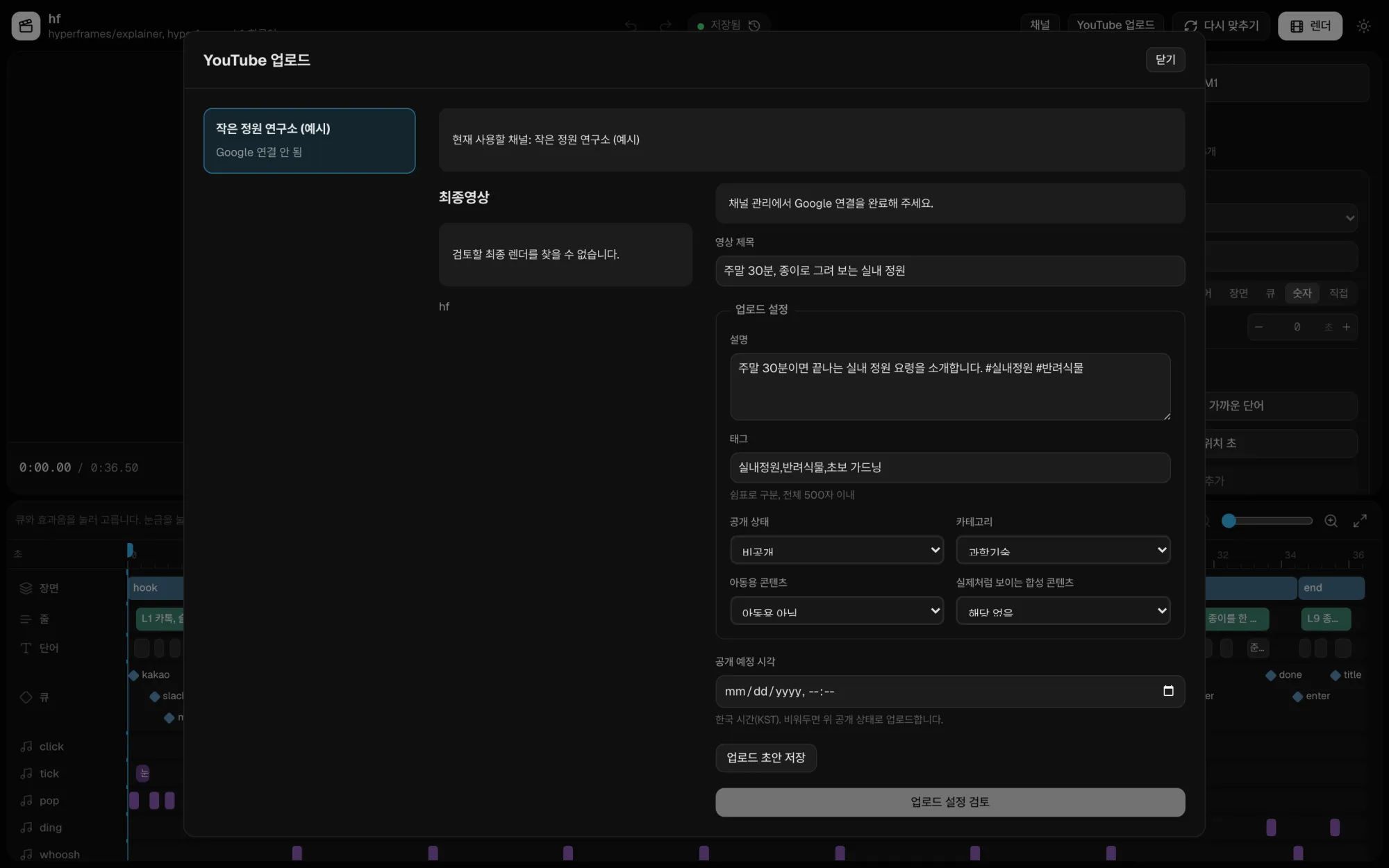
YouTube upload settings. If you leave the scheduled time empty, the video is uploaded right away with the visibility you chose. -
A person checks and uploads
The review screen shows the final video, the channel, and the settings again, along with the YouTube Terms of Service notice. The upload with
youtube.uploadstarts only when a person presses "확인했고, YouTube에 업로드" (Checked, upload to YouTube). The agent cannot press this button. -
Check the status after upload
When the upload finishes, the editor uses
youtube.readonlyto read the video's visibility status and scheduled time again, and shows whether they match what you requested.
3. Permissions fishcut requests
| Permission | Used for | Not used for |
|---|---|---|
youtube.upload | Uploading the final video a person has checked to the connected channel, with the settings that person chose | Uploads that a person has not checked, changes to videos on other channels |
youtube.readonly | Showing the name and ID of the channel to upload to, checking visibility status and scheduled time after an upload | Collecting watch history, subscriptions, or analytics data |
When fishcut uses information it receives from Google APIs, or transfers that information to another app, it follows the Google API Services User Data Policy, including the Limited Use requirements.
fishcut's use and transfer to any other app of information received from Google APIs will adhere to the Google API Services User Data Policy, including the Limited Use requirements.
4. Data fishcut stores
Every item is stored in the fishcut state folder on this computer. The folder is created with permissions that let only the user who runs fishcut read it (0700 for the folder, 0600 for files). When you run fishcut with Docker, it is kept in that installation's state volume.
| Data | Used for | Retention and deletion |
|---|---|---|
| Google tokens (access token, refresh token) | Authenticating YouTube requests | Kept while you stay connected. When you disconnect, fishcut asks Google to revoke them and deletes them right away. |
| ID and name of the connected channel | Showing the channel to upload to | Checked again or deleted within 30 days. Deleted within 7 days after you disconnect. |
| Upload history (video ID, visibility status, scheduled time) | Checking upload results | Checked again or deleted within 30 days. |
| Upload settings (title, description, tags, visibility, and more) | Reusing what you entered for the next upload | Kept until you change or delete them. |
| OAuth client file | Connecting to Google | Kept until you change or delete it. |
5. Revoking access and deleting data
- Disconnect in the editor's channel management. The editor asks Google to revoke the token and deletes the token from this computer.
- You can also revoke access on the Google Account permissions page. In that case, the editor finds that the token is invalid on its next request and deletes the related data within 30 days.
- Deleting the state folder removes all fishcut data from this computer. Videos already uploaded to YouTube and data that YouTube stores are not affected.
6. Upload limit
The YouTube Data API upload quota is 100 videos.insert calls per day for each Google Cloud project. If you use an OAuth client you created yourself, the quota counts against your own project. To raise the limit, you need to pass a YouTube API audit.